




How to Fix NOT SECURE SIGN/Force HTTPS For your website.
If you have a secure socket layer certificate (SSL) on your website, you can automatically redirect visitors to the secured (HTTPS) version of your site for a secure connection. StormerHost.com hosting uses cPanel and there is a simple tool in cPanel that will help you accomplish this.
Enforcing SSL for Main domain and Addon domain:
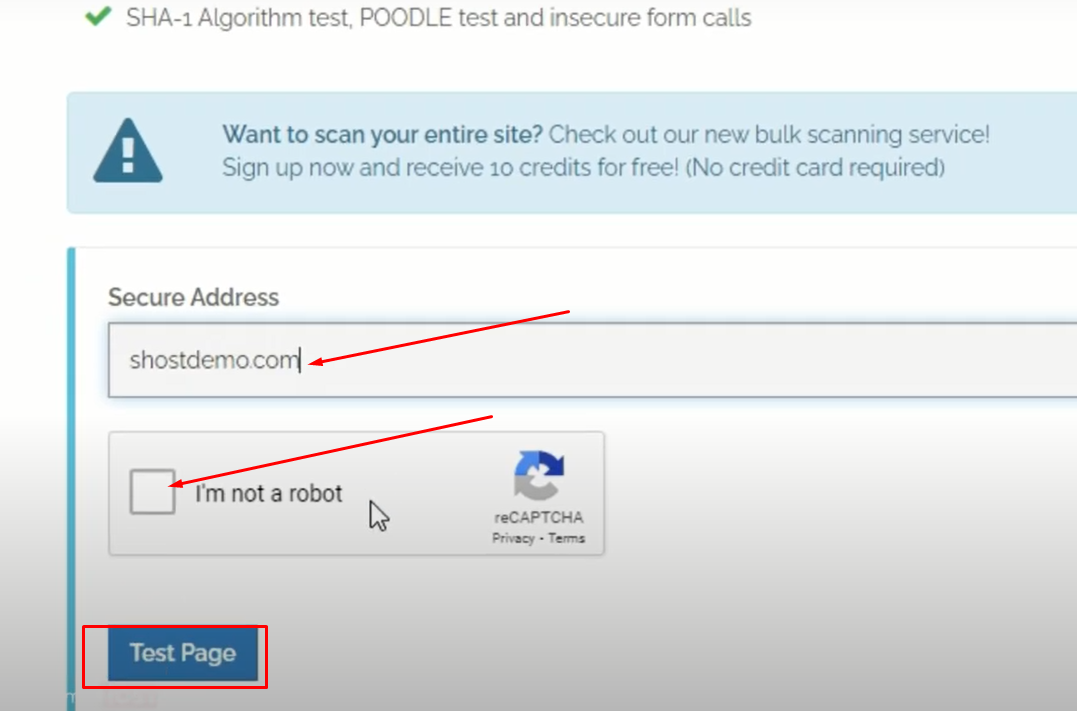
- Open a new tab and type whynopadlock.com.

Screenshot 2 - Enter your domain name in the field provided and Click on the (I’m not a robot) to complete the recaptcha then Select Test Page.
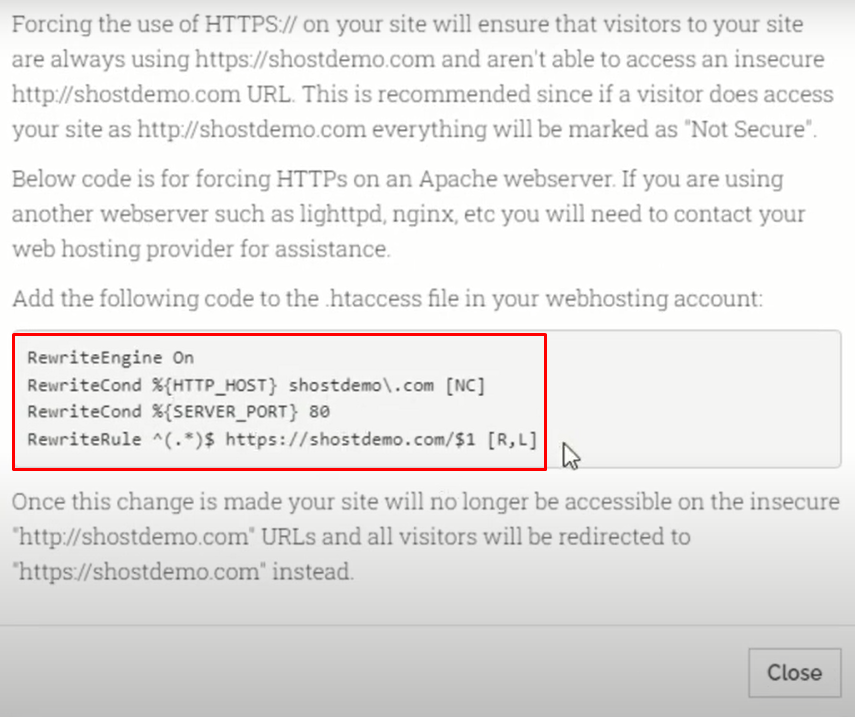
Screenshot 26 - Click on the More Info at the far end of Force HTTPS.

Screenshot 28 - Copy Code provided in the rectangular grey box.
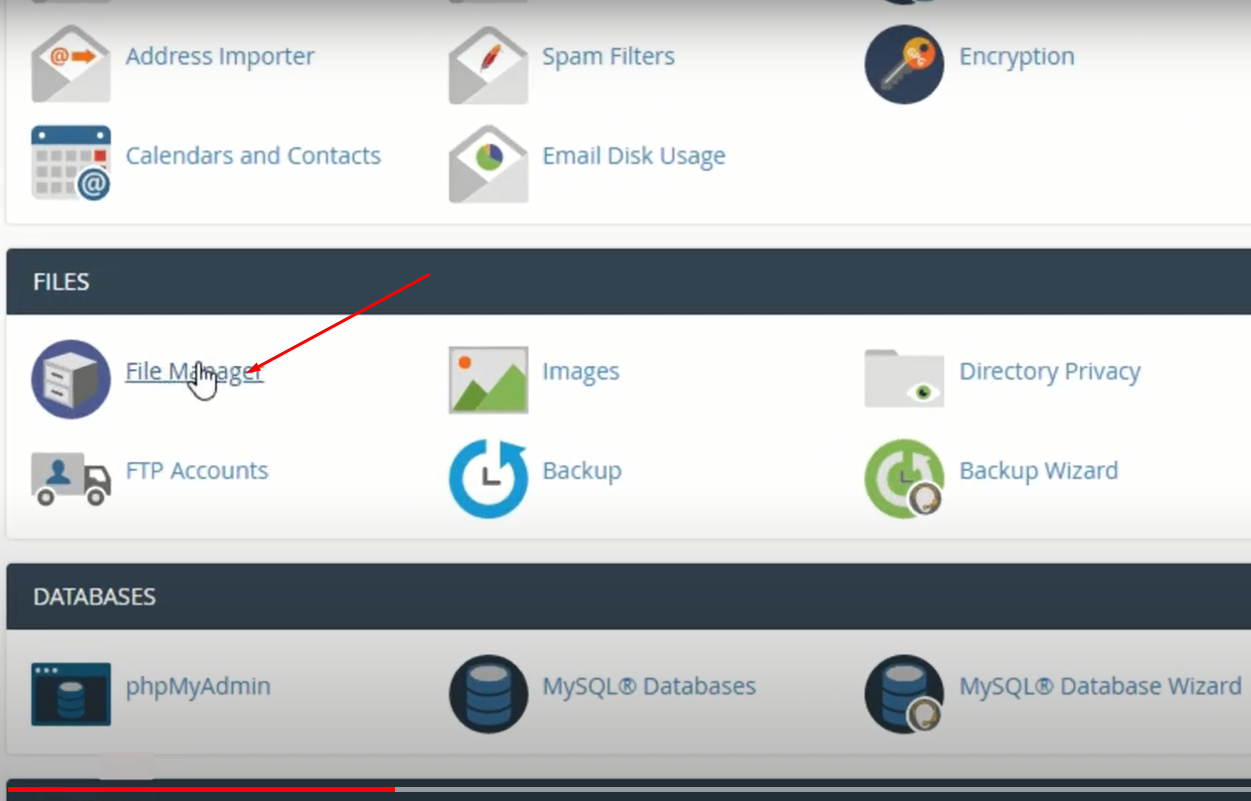
Screenshot 29 - Log into your cPanel. In the file section, Click on File Manager
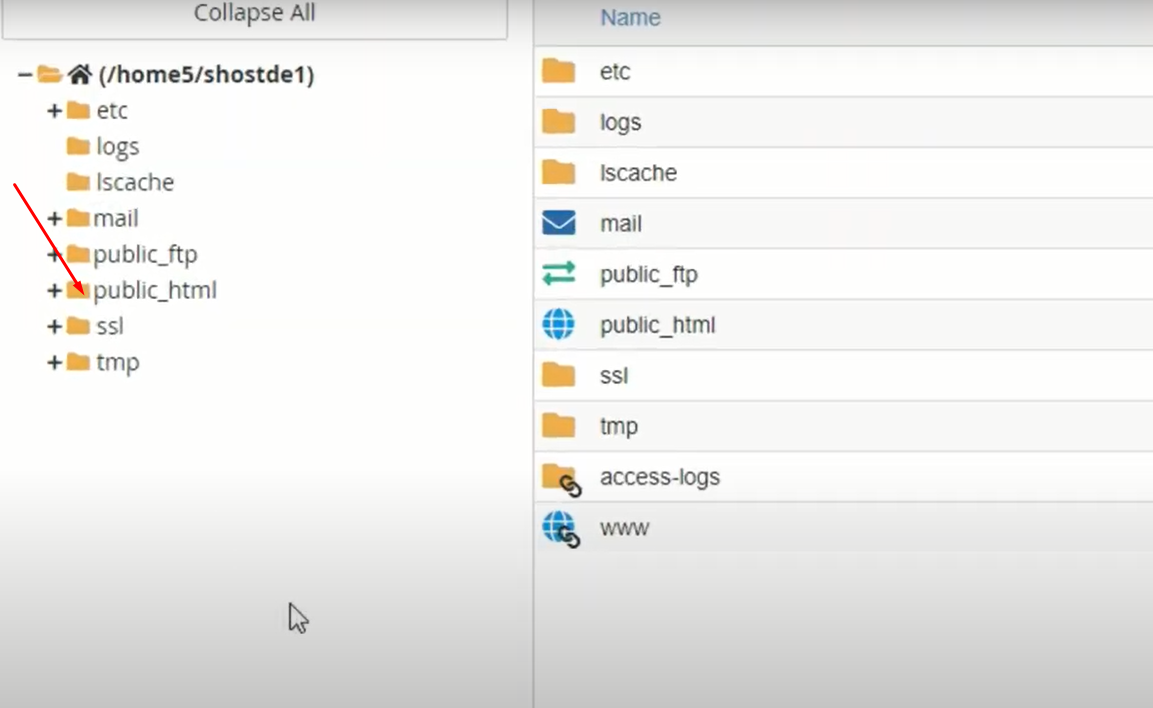
Screenshot 30 - Select the public_html folder
Screenshot 31 - Search for .htaccess file. If not found, Click on Settings on the upper right corner.
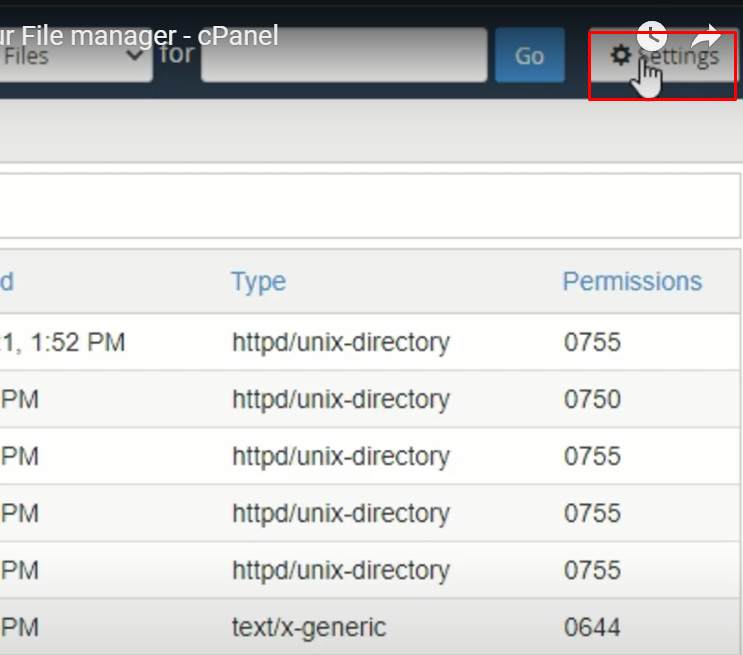
Screenshot 32 - Select Show Hidden File and click on Save.

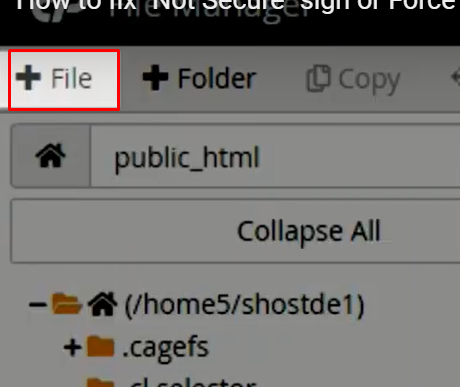
Screenshot 33 - Note: If you don’t find the .htaccess file after enabling the “show hidden files”, you can create a new one by Clicking Add File icon in the top left corner. Enter the name of the File i.e: .htaccess in the first file and Click on Create New File.
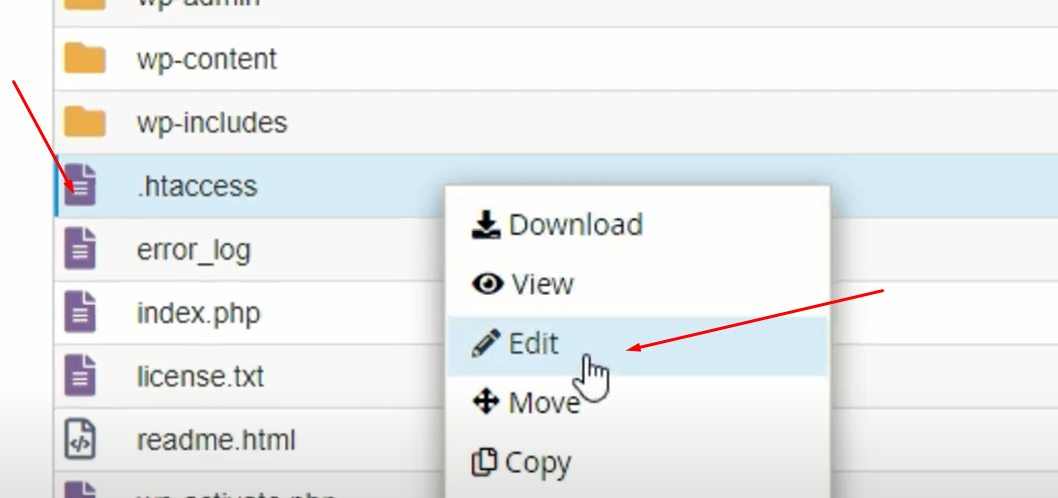
Screenshot 40 - Right Click on the .htaccess file then Select Edit.
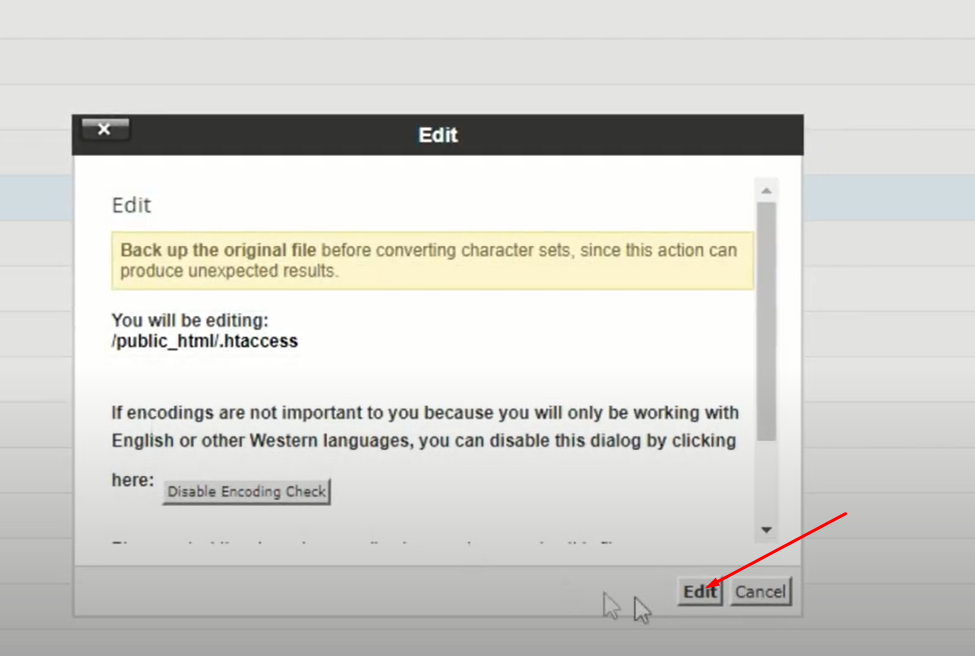
Screenshot 35 - Click Edit again when the pop-up appears.
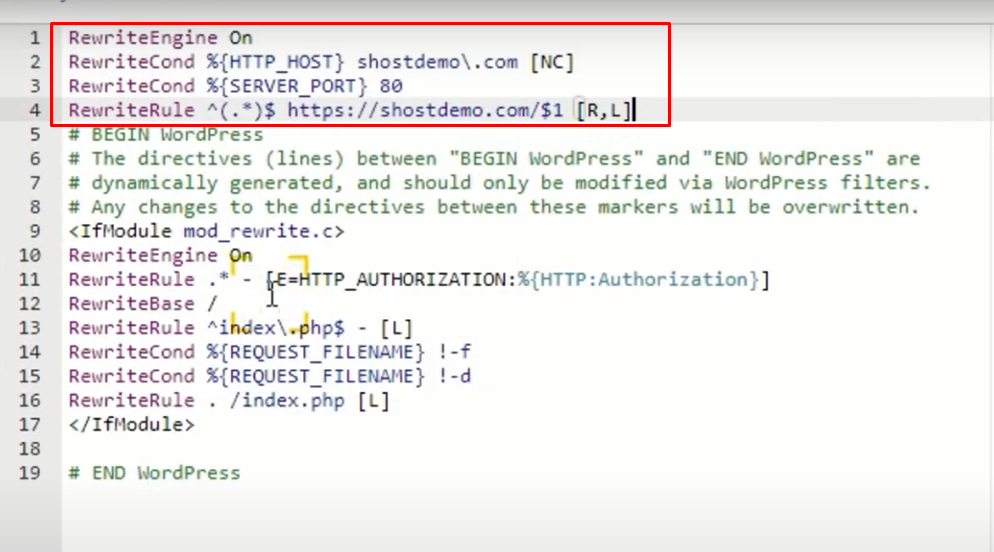
Screenshot 36 - Paste the Code you copied from the whynopadlock.com and Click on Save Changes.
Screenshot 37 - Go back to whynopadlock.com and retest the url.
Scroll down to the bottom and Click on the (I’m not a robot) to complete the recaptcha the Select Test Page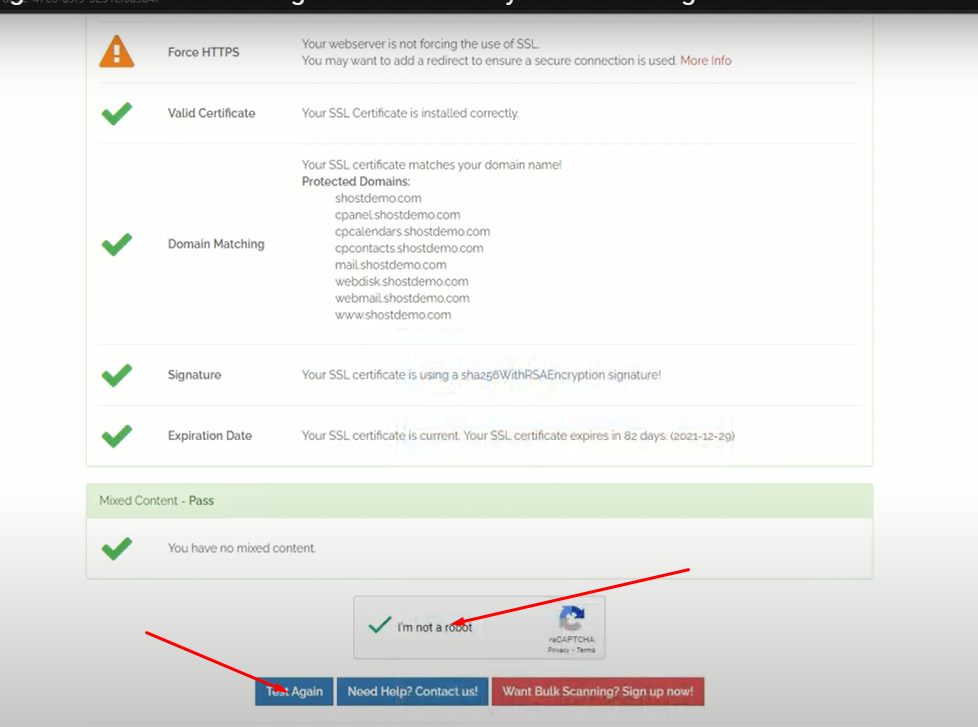
Screenshot 38 - HTTPS have been verified.

Screenshot 39 - Enforcing SSL for Addon domains:
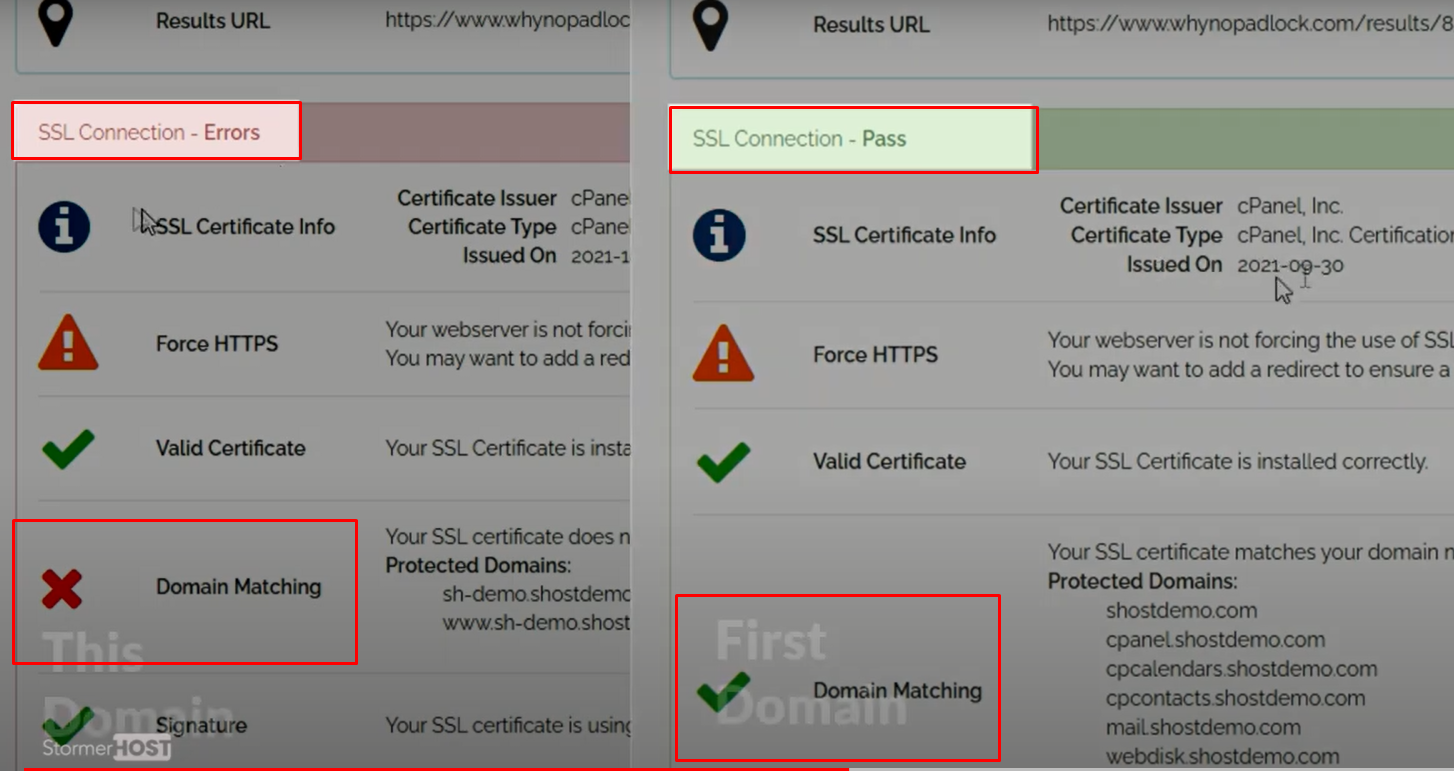
Enter your domain name in the field provided and Click on the (I’m not a robot) to complete the recaptcha then Select Test Page.Screenshot 26 - From the Test, SSL have not been activated unlike the Main domain.
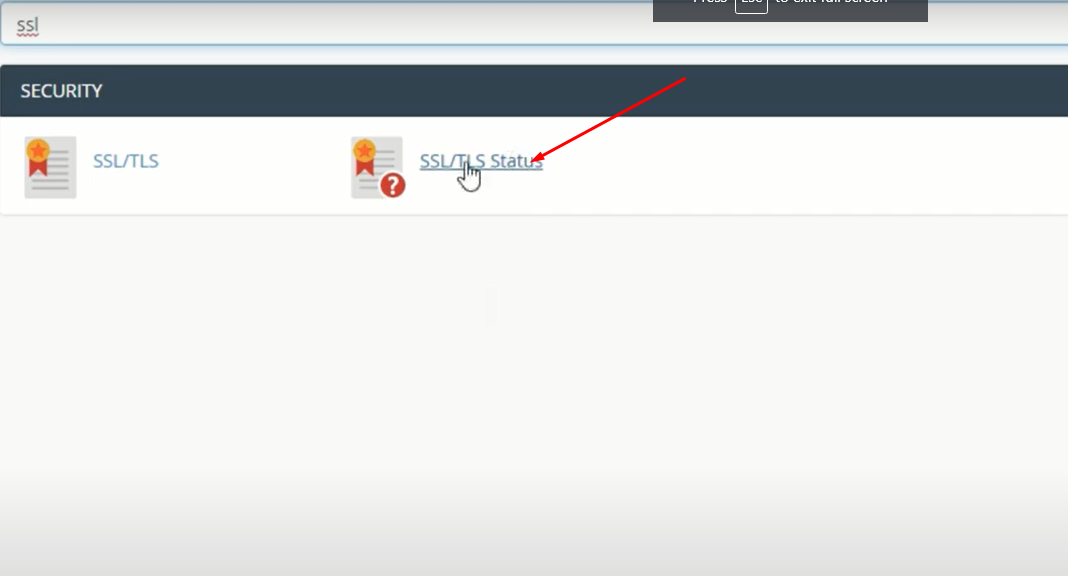
Screenshot 44 - First activate SSL Status. Login to your cpanel in the search bar, type SSL/TLS Status.
Screenshot 45 - Click on Run AutoSSL.

Screenshot 46 - Green Padlock Icon will confirm if it’s successful.
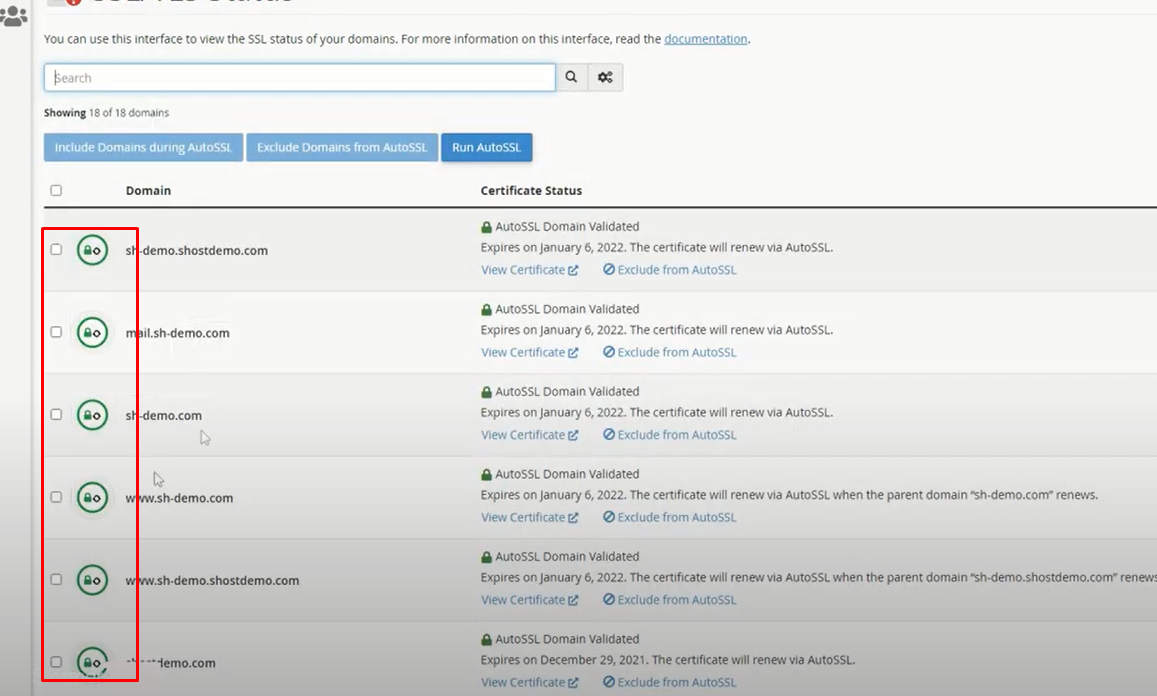
Screenshot 47 - Go back to whynopadlock.com.
Scroll down to the bottom and Click on the (I’m not a robot) to complete the recaptcha the Select Test Page.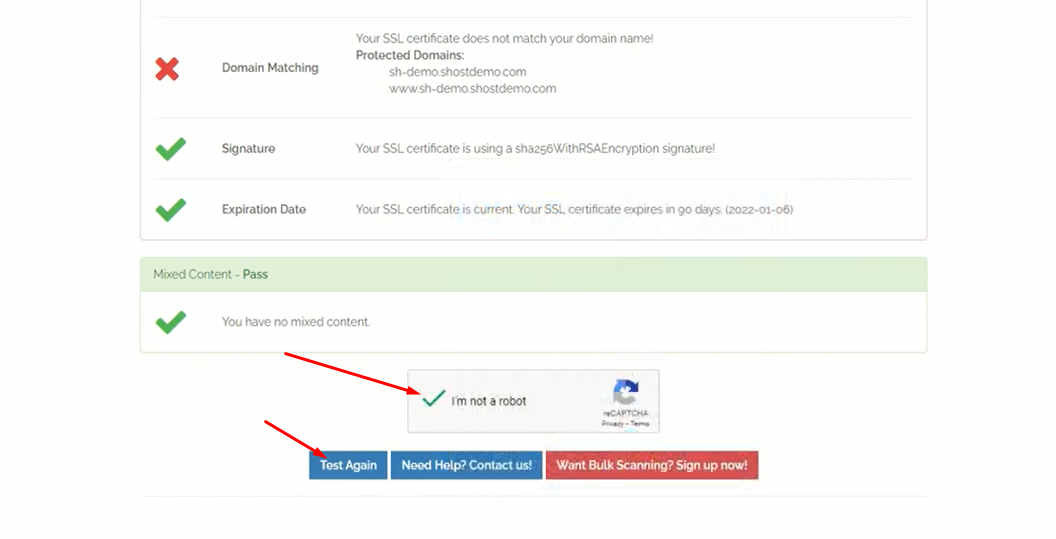
Screenshot 48 - Click on the More Info at the far end of Force HTTPS
Screenshot 28 - Copy Code provided in the rectangular grey box.
Screenshot 29 - Log into your cPanel. In the file section, Click on File Manager
Screenshot 30 - Select the public_html folder
Screenshot 31 - Search for Addon domain directory i.e.(sh-demo.com)

Screenshot 49 - Right Click on the .htaccess file then Select Edit.
Screenshot 35 - Click Edit again when the pop-up appears.
Screenshot 36 - Paste the Code you copied from the whynopadlock.com and Click on Save Changes.
Screenshot 37 - Go back to whynopadlock.com and retest the url.
Scroll down to the bottom and Click on the (I’m not a robot) to complete the recaptcha the Select Test PageScreenshot 38 - HTTPS have been verified.
Screenshot 39
Your domain should now be using HTTPS.
————————–
If you have an existing .htaccess file:
- Do not duplicate RewriteEngine On.
- Make sure the lines beginning RewriteCond and RewriteRule immediately follow the already existing RewriteEngine On.
